
Students will be turning in documents via Assignment activities. Instructors must view all submissions and mark them Satisfactory/Unsatisfactory. Any Unsatisfactory submissions must be resubmitted until they are marked Satisfactory.
Note: If a student's site does not require them to submit any of the site-dependent forms, instructors must mark that submission "Satisfactory." Do not leave them empty.
Checking Submissions
1. Open the Assignment and click View All Submissions
Option 1 - View all submissions at once: Click the Download all Submissions button. Save them to your computer, review them, and return to enter grades.
Option 2 - View submissions individually: Find a student, scroll to the right and click the link in the "File Submissions" column to download.
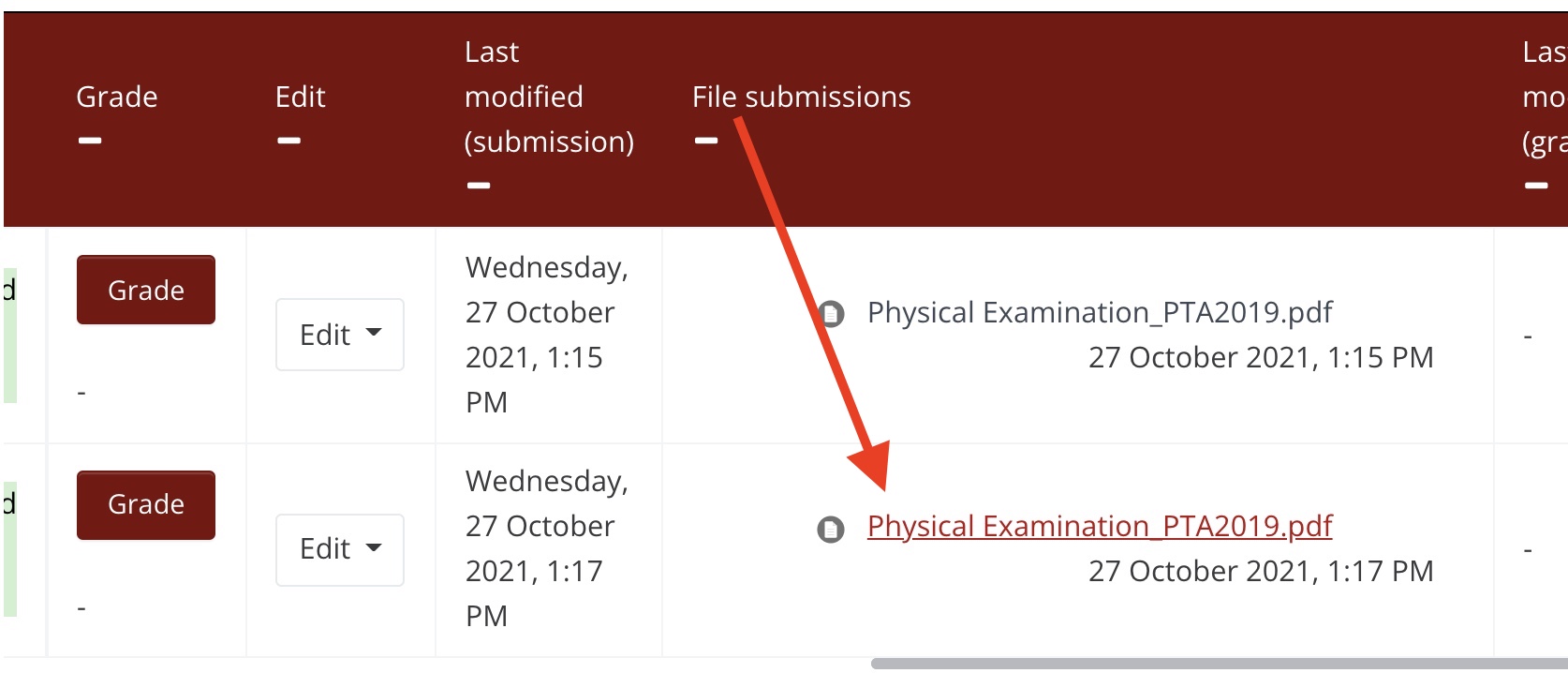
2. After reviewing the submissions, return to the Submissions screen and click the Grade button.
If you mark "Unsatisfactory," provide the student with a detailed description of what needs to be fixed in the Feedback Comments section
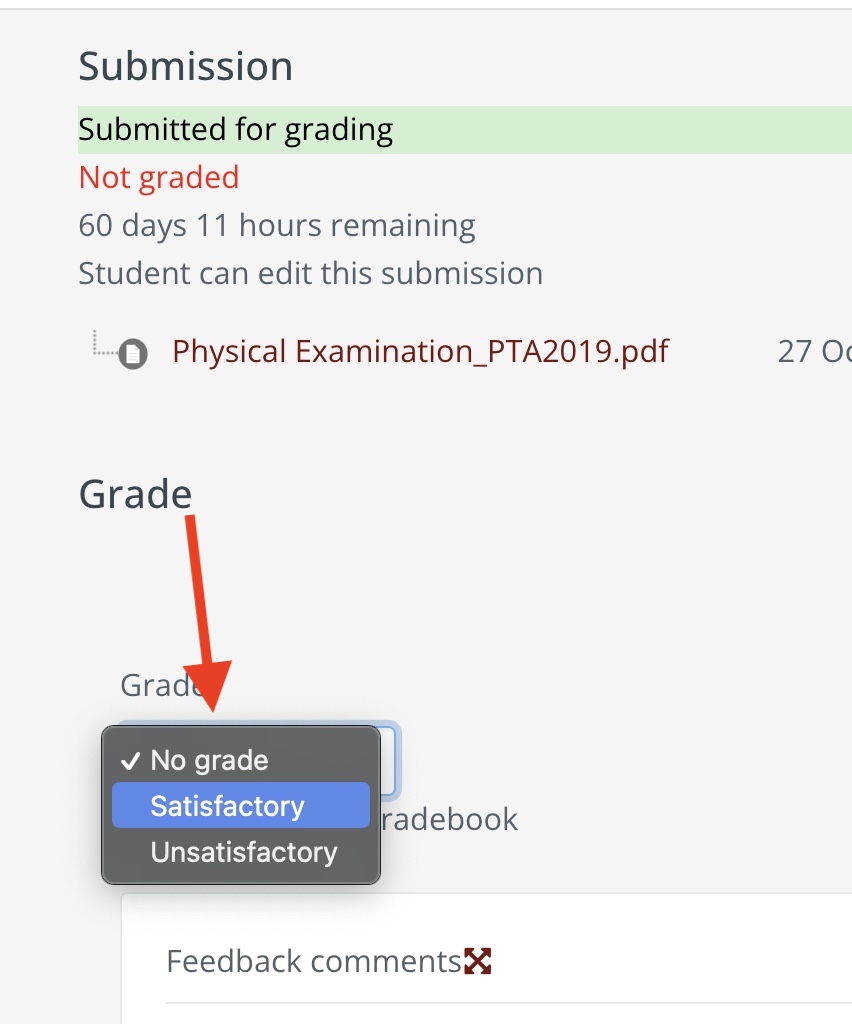
3. Click Save Changes and return to the Submissions window or Save and Show Next to see the next submission
4. Unsatisfactory submissions need another attempt. Click the checkbox to the left of the student's name. From the "With Selected" dropdown, select Allow Another Attempt.
Comments
0 comments
Article is closed for comments.