
As the host in a meeting, you have some control over participants' name, audio, and video.
In the bottom toolbar, click Manage Participants
A panel on the right side will appear listing you as the host and everyone else who has joined.
Changing a participant's name
If someone has dialed in via phone, their phone number will be listed instead of their name. To more easily identify them, hover over the name and click More, then Rename.
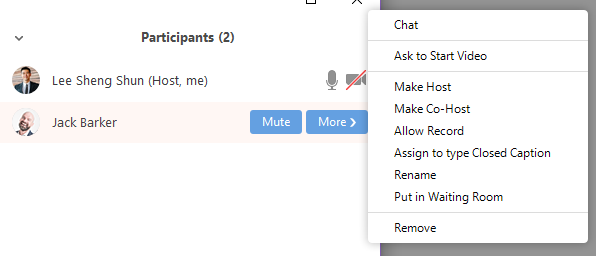
You can also ask participants to change their own name by clicking Participants in the bottom toolbar and hovering over their own name.

Muting Individual Participants
If background noise or microphone interference is a problem, you can ask participants to mute themselves when they are not speaking. A host can also mute a participants mic by clicking the grey icon next to their name.

Muting All Participants
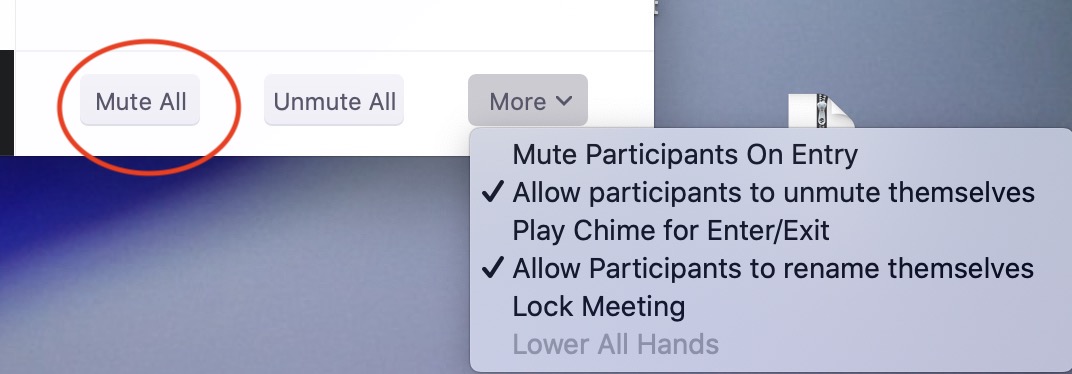
If you can't identify background noise, you can also mute everyone but yourself with the buttons at the bottom of the participant panel. The "More" button allows further audio options.
Comments
0 comments
Article is closed for comments.