
PDs are responsible for setting up and maintaining (in the event of changes) the attendance sessions in each new course. This can be done in the 7-day period between the restore from the template and the module start.
Scheduling Sessions
When you select "Add session," you'll open a form with the following fields you need to pay attention to --
Date: the date of the session or the first in a sequence of sessions
Time: the start and end time of the session(s), in 24 hour (military) time. If you are scheduling a session with a scheduled break (ie, 9 to 1:30 with a half hour break), you can either schedule the two segments separately (ie, 9 - 11 and 11:30 - 13:30) or one session for the total in-class time (ie 9 - 13), the important thing is that the course sessions reflect the course's clock hours!
Repeat the session above as follows: check to make multiple sessions
Repeat on: select all days of the week that the course meets at the selected time
Repeat every: change if the class meets, for instance, every other week
Repeat until: the last day the course meets. If the date you enter here is not one of the weekdays you selected above, then sessions will be made on selected weekdays between the two dates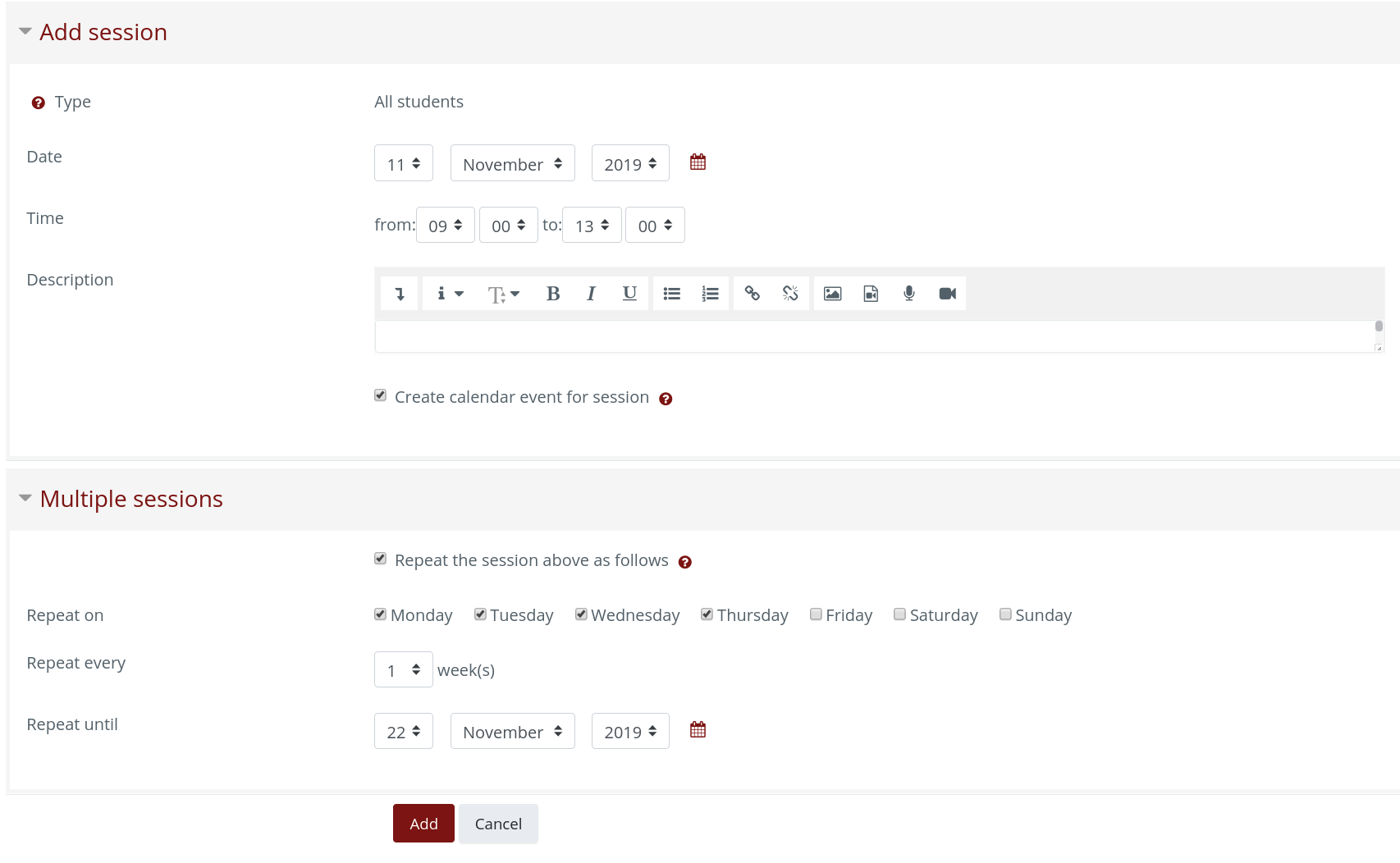
Editing Single or Multiple Sessions
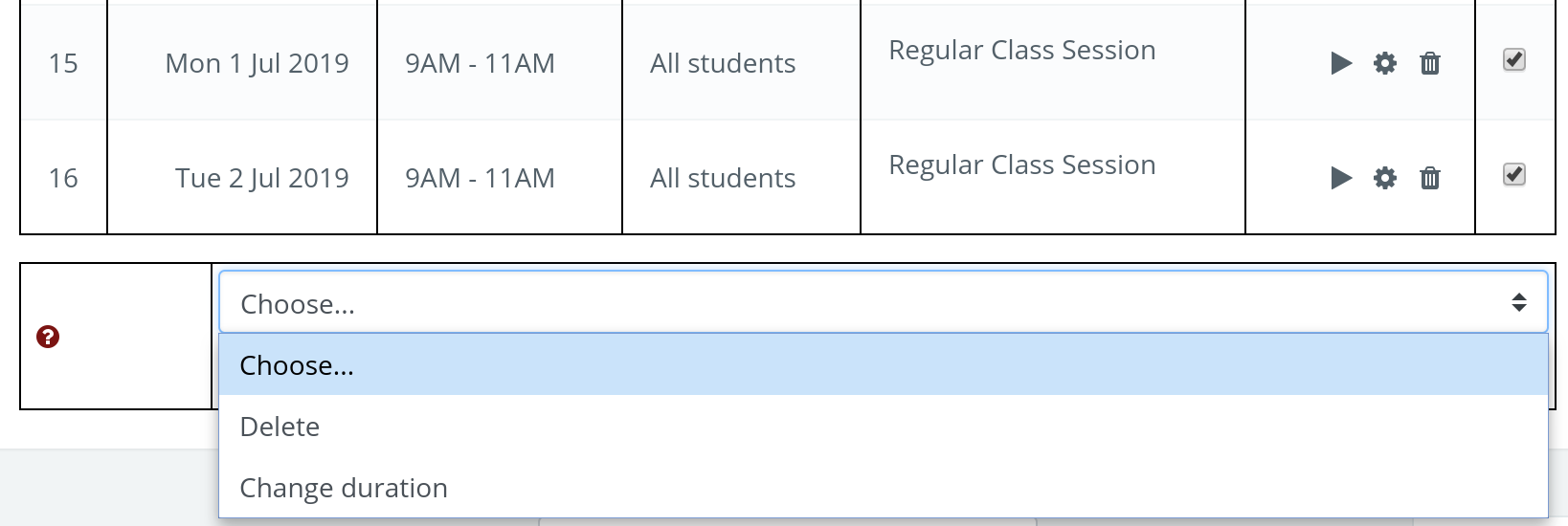
After you create sessions, you can edit any settings of a session with the gear icon, or delete a session with the trashcan icon. You can also use the checkboxes to select multiple sessions to change all of their durations or delete them all.
Advanced Troubleshooting
Do I need to schedule Lecture and Lab separately?
Not necessarily. If Lecture and Lab are on the same day, you can schedule them together as one session. However, if there is a scheduled break between them, remember that the session length needs to match the total in class hours.
When is it OK to edit or move a session?
You can edit any future sessions, and you can freely move sessions in the future. You should never edit or delete a session where attendance has already been taken, or move a session into a past week, as these can cause errors when the data is saved in Salesforce. If there's a situation where you need to alter past sessions, reach out with a help ticket so the Instructional Design staff can assist.
I scheduled or edited a session, and it's not showing up.
Make sure the filters are set to show "all" sessions, not just the current week. If you accidentally scheduled a session before the course start date, it will still be hidden, and you'll need to temporarily change the course start date to fix it.
Comments
0 comments
Article is closed for comments.