
You can add a YouTube Video to your course in 3 ways:
1. Add it as a URL Resource, directing to YouTube
2. Add it on a Moodle Page (good for grouping multiple videos on the same topic)
3. Add it as a label so the video displays on the front page. See below
Note for Online Instructors: Each week, online course instructors are required to post a short (1-2 minute) introduction to the week's topics. Think of this as a "commercial" for the week. You can: let your students know what to expect in their reading material or exercises, bring up some real-world examples or relevance, recommend certain topics to focus on, suggest study methods, etc. Note: if your course template already has videos that need to be replaced, skip to the bottom section
Adding a Video for the First Time
1. Record your video and upload it to your youtube channel
2. Navigate to your course and click Edit Mode in the upper right. Then navigate to the relevant section and click Add an Activity or Resource.

3. Scroll to the bottom and select Text and media area
4. Click the Insert Media icon
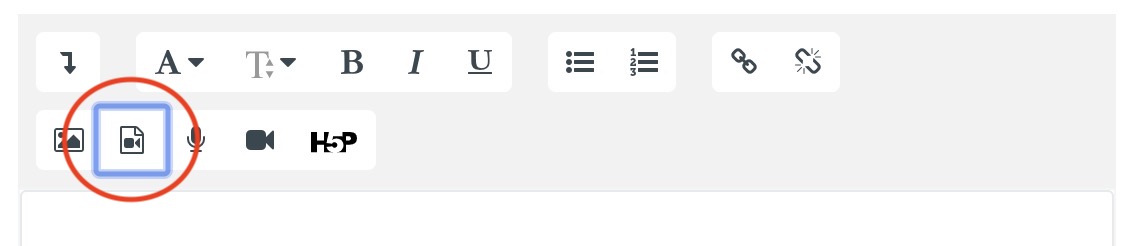
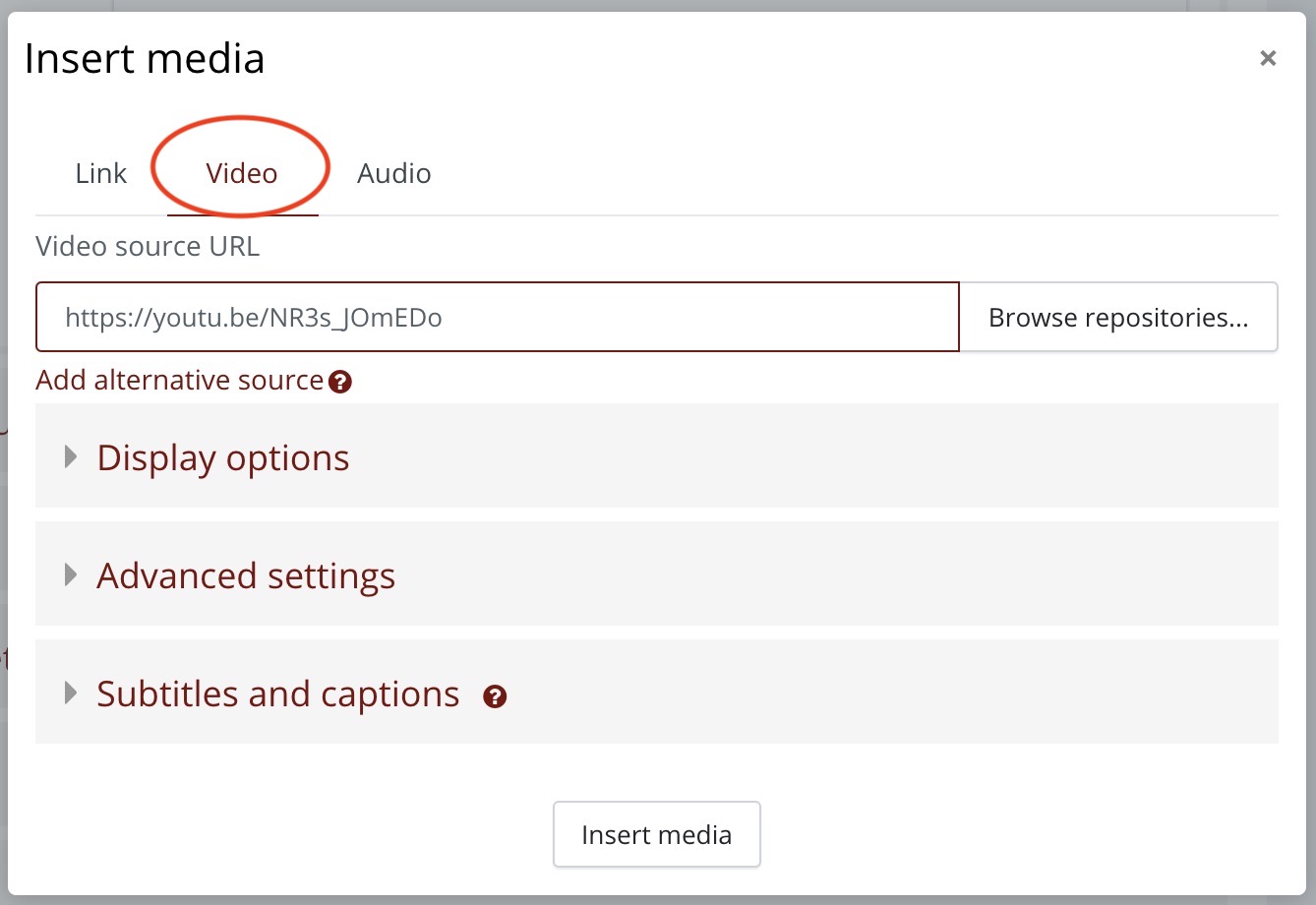
Click the Video Tab and paste your YouTube URL into the field. Click Insert media.
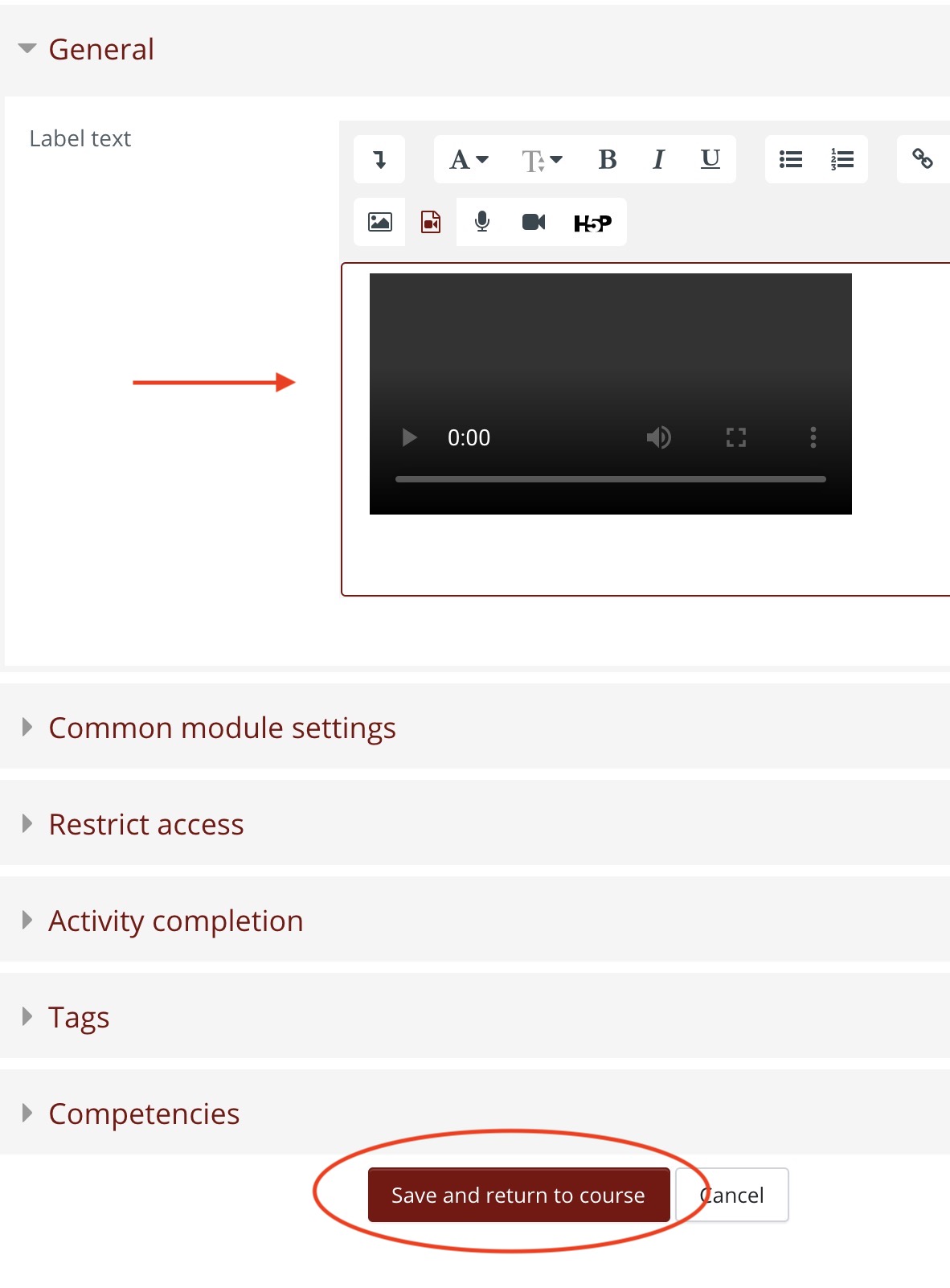
5. Your video will appear as a black media box. Click Save and Return to Course.
6. On the course page, click the four-arrow Move button to the left of your new label and drag it to the desired location.
Note for Online Courses: If it's a Weekly Intro Video, drag it above the Research heading.

Replacing a Previous or Placeholder Video
1. Navigate to your course and Turn Editing on, then navigate to the relevant section. Click the Edit button next to the Label with the video, then Edit Settings.
2. Delete the current video, then follow steps #4 and 5 above.
Comments
0 comments
Article is closed for comments.