
Forum posts can be rated using a scale (pre existing number or word scales). By default, only teachers can rate forum posts, though students can be given permission to do so if desired (see Forum permissions below). This is a useful tool for giving students participation grades. Any ratings given in the forum are recorded in the gradebook.
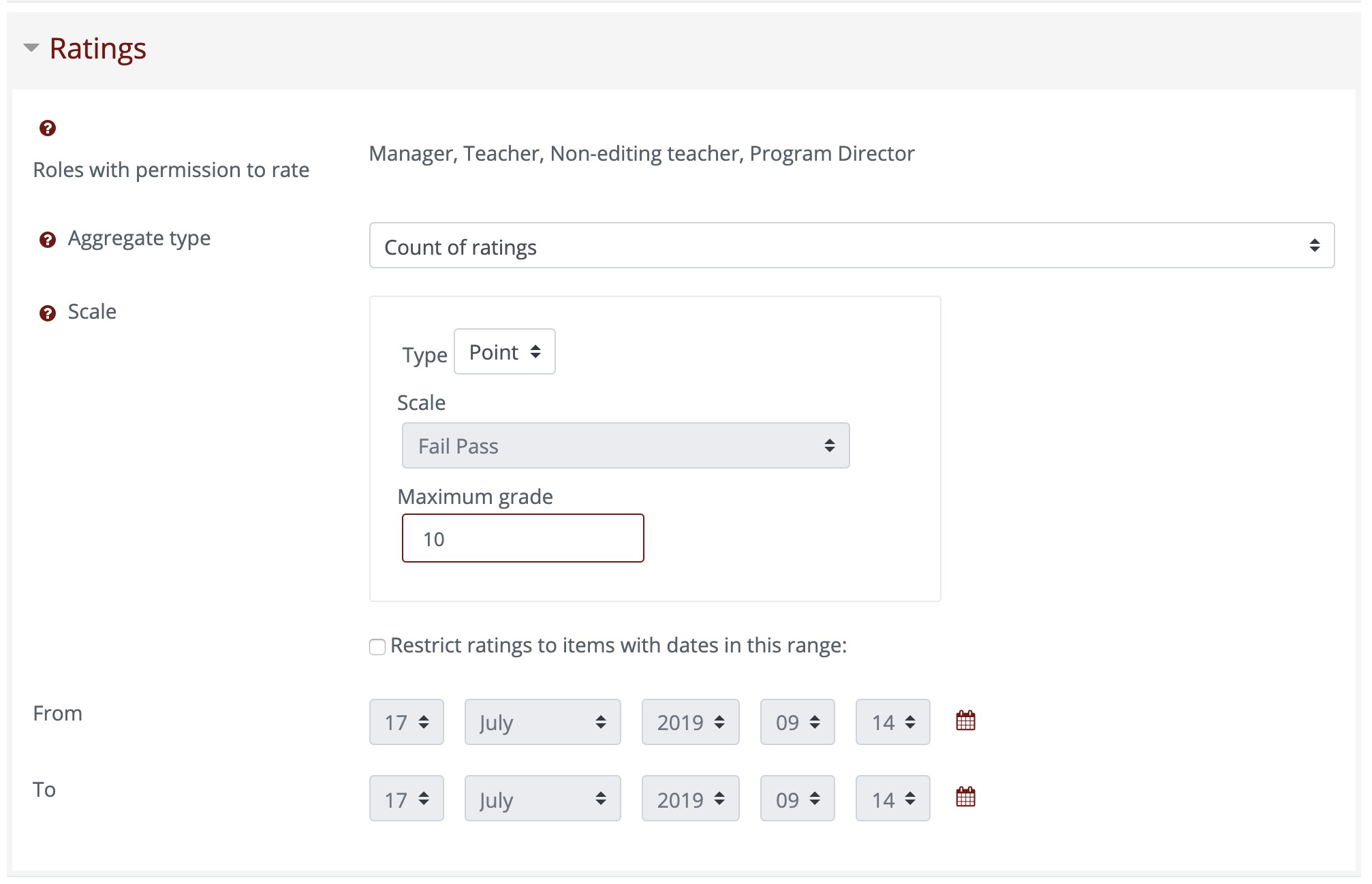
Add a forum to your course and on the Settings page, create a name, optional description, and optional timing settings. Then, expand the "Grade" and "Ratings" sections and:
1. Set the Grade Category 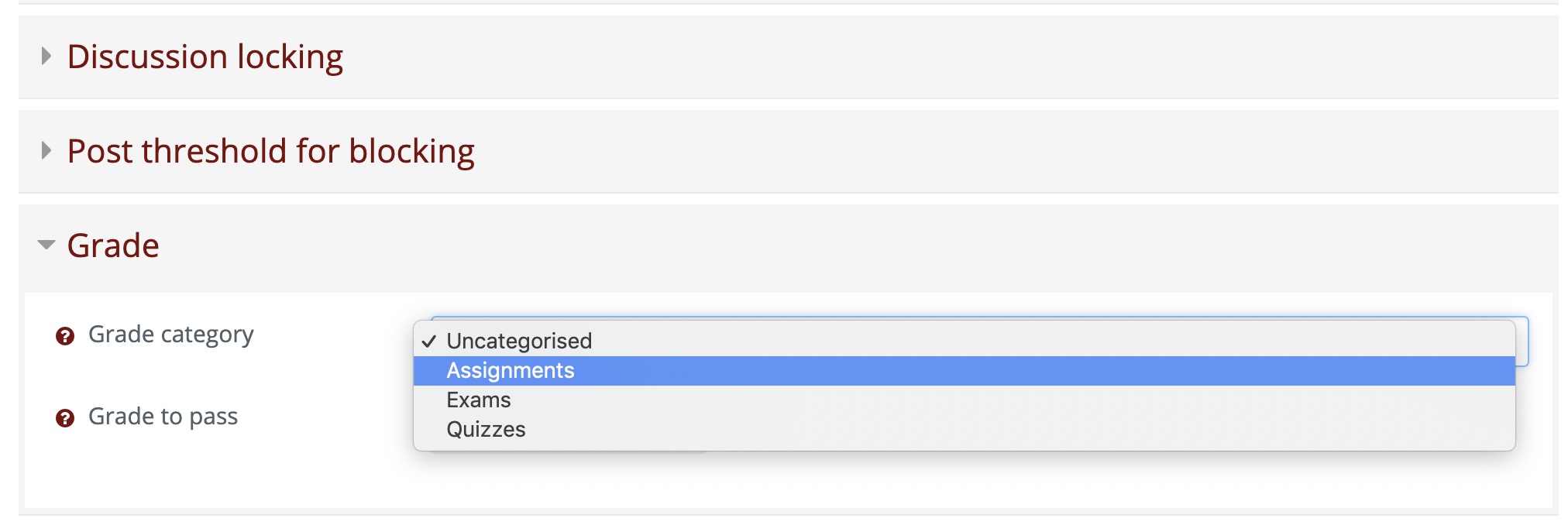
2. Set the Aggregate Type: 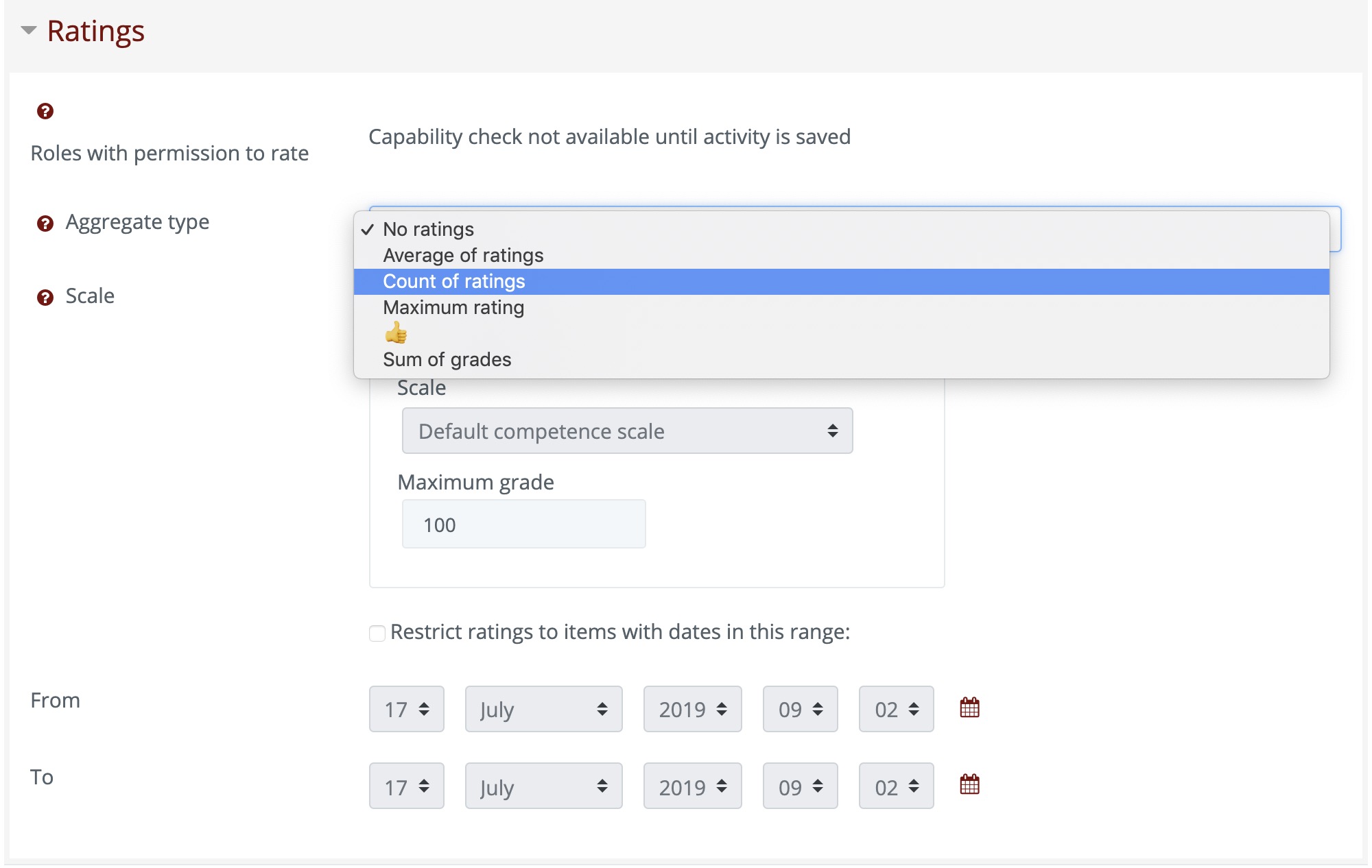 Decide how all the ratings given to posts in a forum are combined to form the final grade (for each post and for the whole forum activity). Some scales do not lend themselves to certain types of aggregates. There are five options:
- Average of ratings (default) - This is the mean of all the ratings given to posts in that forum. It is especially useful with peer grading when there are a lot of ratings being made.
- Count of ratings - The counts the number of rated posts which becomes the final grade. This is useful when the number of posts is important. Note that the total can not exceed the maximum grade allowed for the forum. A count may be used if the teacher simply wants to acknowledge that a reply was given in the case students being required to make a certain number of posts in the discussion. Note: Count of ratings does not work for the "Separate or Connected Ways of Knowing" scale or custom scales due to the limitation imposed by the max grade.
- Maximum rating - The highest rating is returned as the final grade. This method is useful for emphasising the best work from participants, allowing them to post one high-quality post as well as a number of more casual responses to others.
- Sum of ratings - All the ratings for a particular user are added together. Note that the total is not allowed to exceed the maximum grade for the forum.
3. Set the Scale:
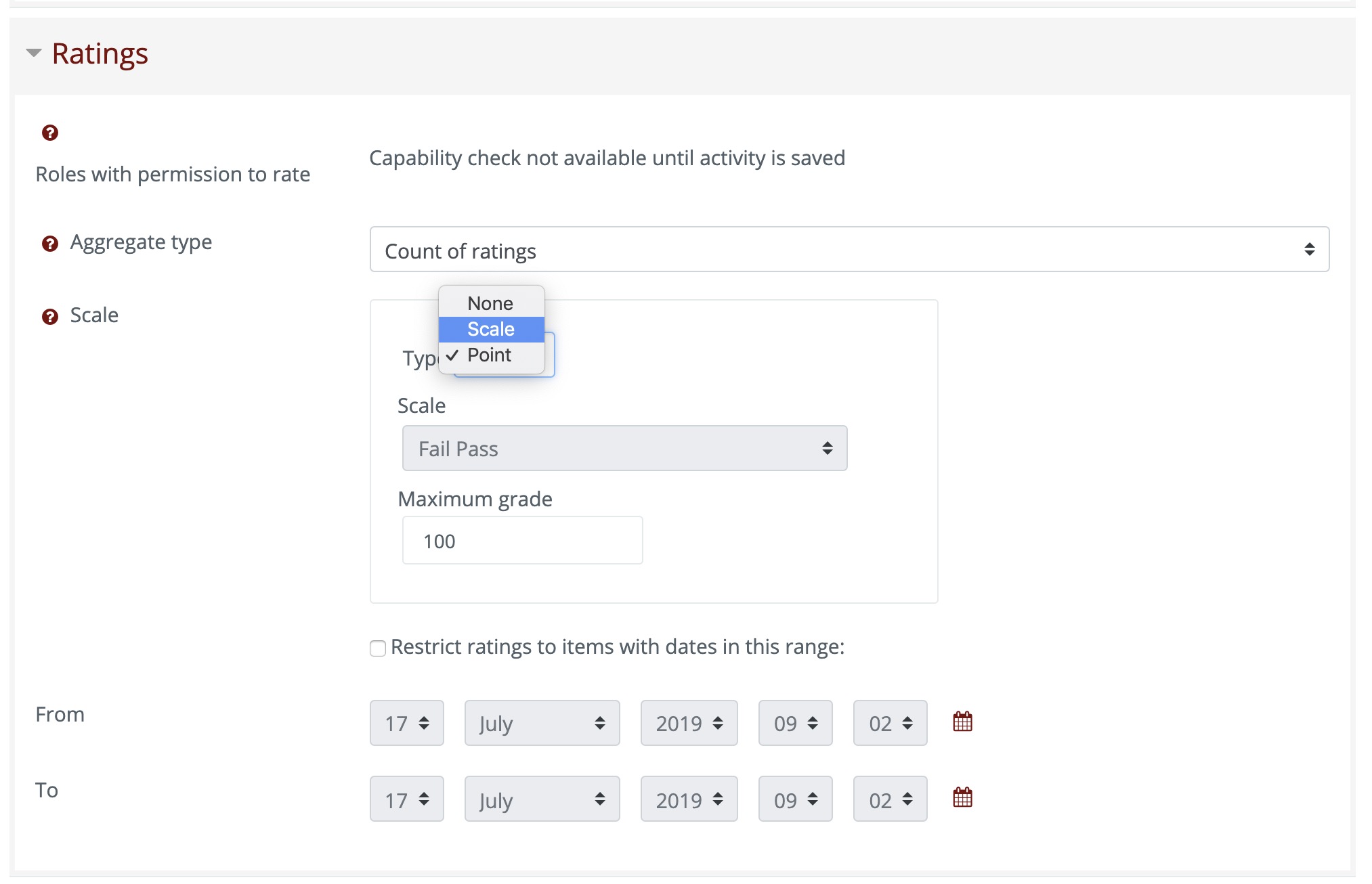
- Points - Assign a numerical score to each student reply, with the total calculation determined by the aggregate type you set above.
- Scale - Assign a Pass/Fail to each student reply, with the total calculation determined by the aggregate type you set above.
4. Set the Scale Type:
If you chose "Scale" above, set the Scale Type to "Fail Pass"
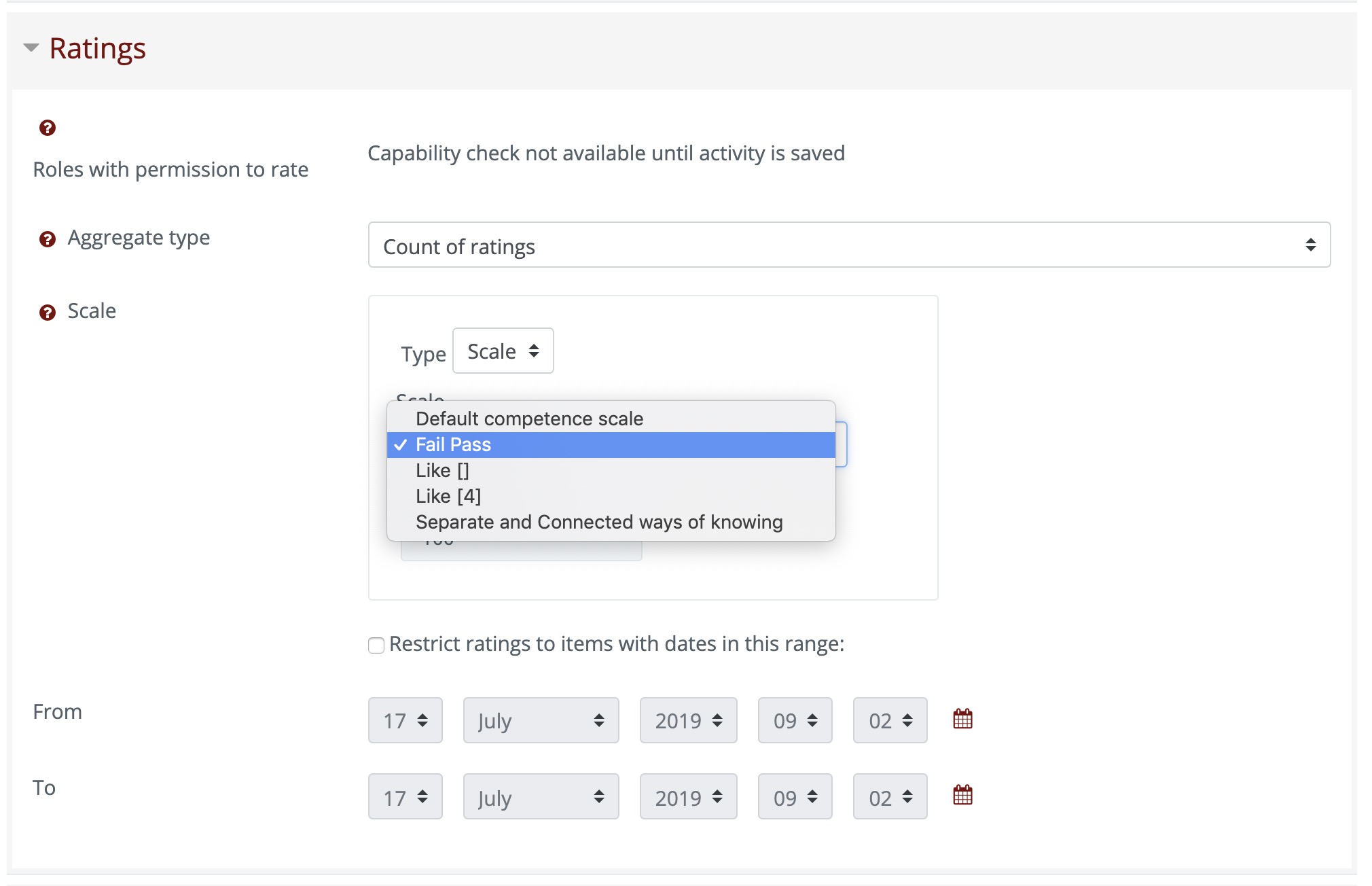
If you chose "Points" above, set the Maximum Grade you want to be available.
Comments
0 comments
Article is closed for comments.