
There are a few circumstances in which you'll need to add scores directly to the gradebook:
a. If students have not completed an assigned activity, Moodle will leave the grade blank. Blank grades are not calculated into the course total, so you'll need to manually add a zero for an accurate calculation.
b. Typically, grade overrides are handled in the individual activity, but you may need to override an auto-graded activity like a quiz or interactive activity.
See 2 methods below:
Input Individual Grades in the Grader Report - simplest method for entering a few grades for different activities
1. Navigate to the course's grade book.
2. Click the upper-right Turn Editing On button. You'll see an editable field in each activity.
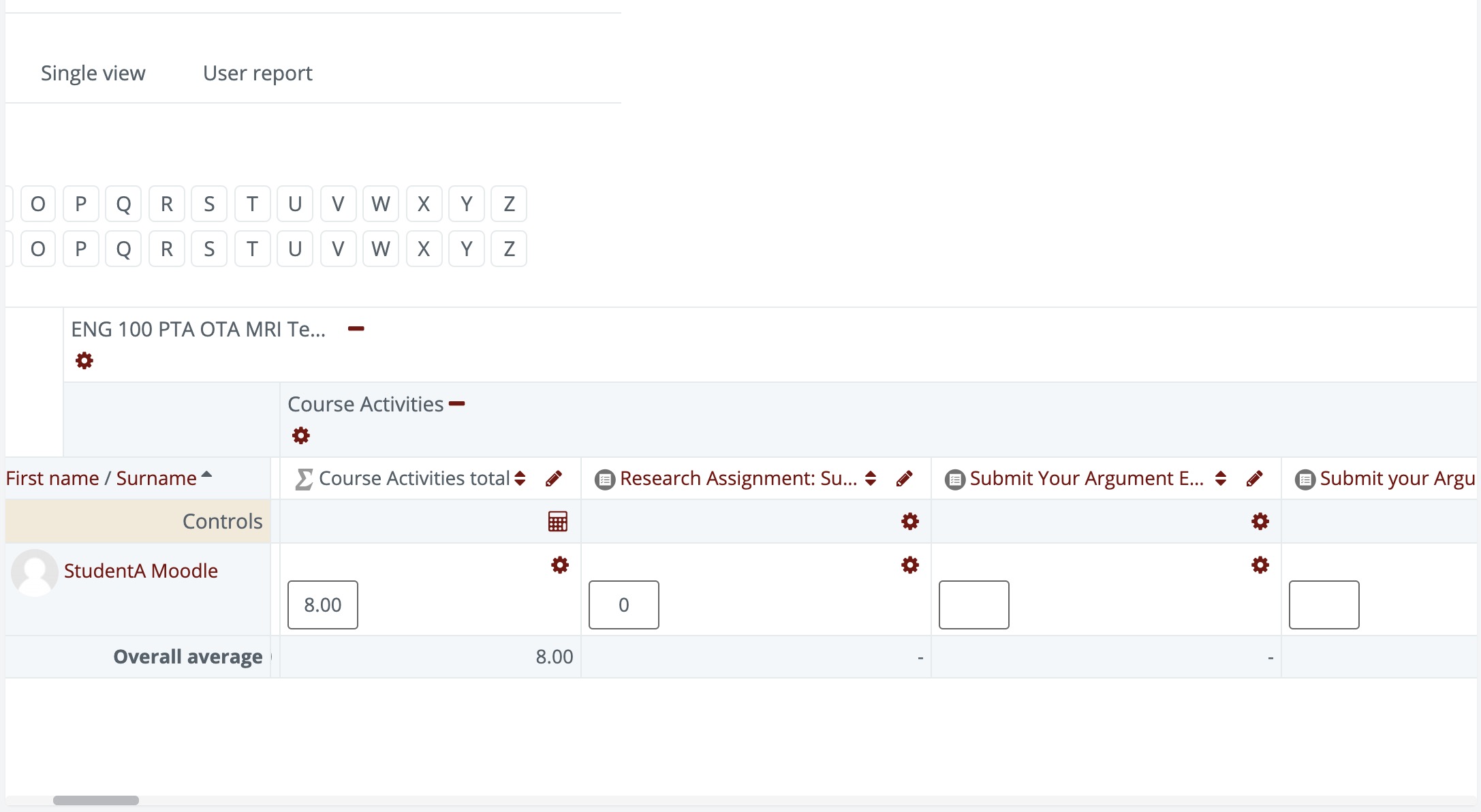
3. Add grades as needed, then scroll to the bottom left and click Save Changes. Don't forget this step!
note: If you are adding several grades at a time, click Save Changes periodically to save your work.
4. Grades that have been input/edited manually are highlighted in the Grader Report.
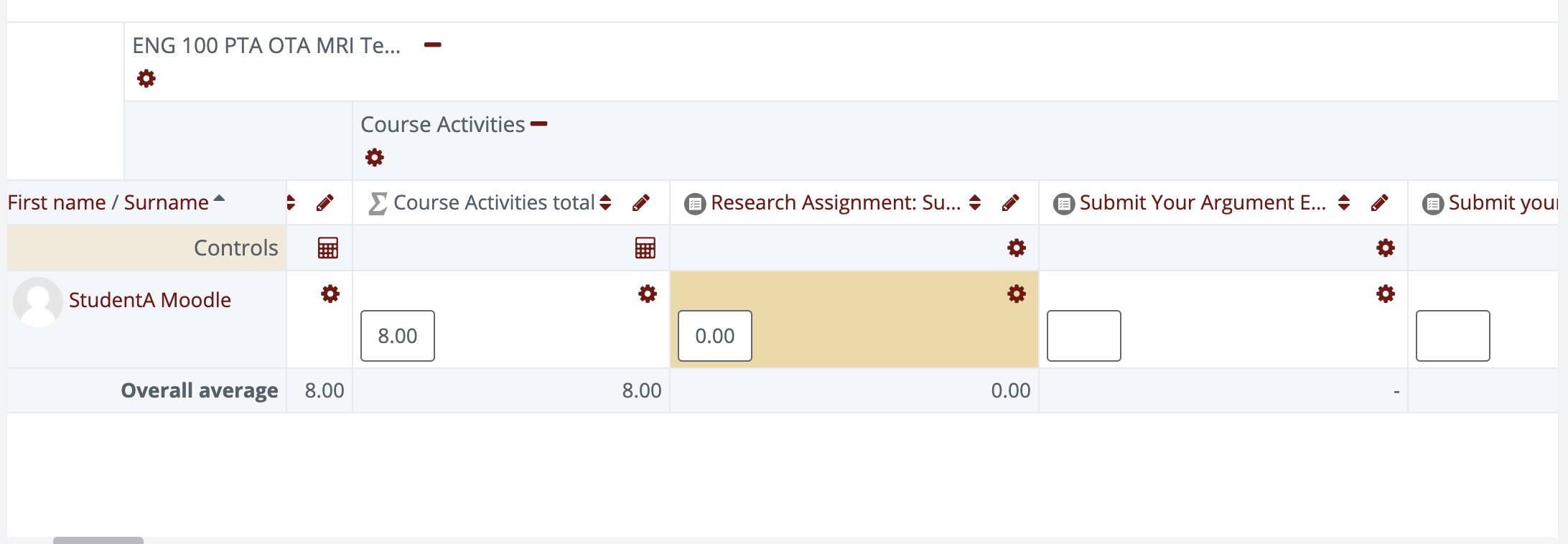
Input Grades in Bulk Using the "Grade Item" View - fastest method for inputting grades for a single activity
1. Navigate to the Course's gradebook.
2. Click the pencil icon next to the title of the activity you want to add grades.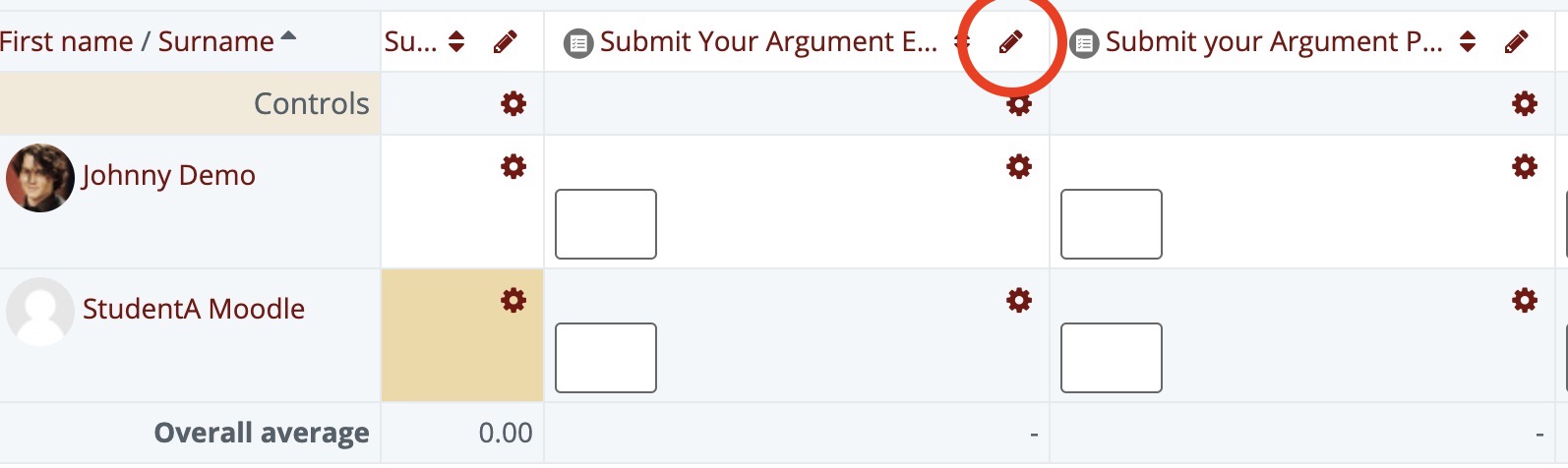
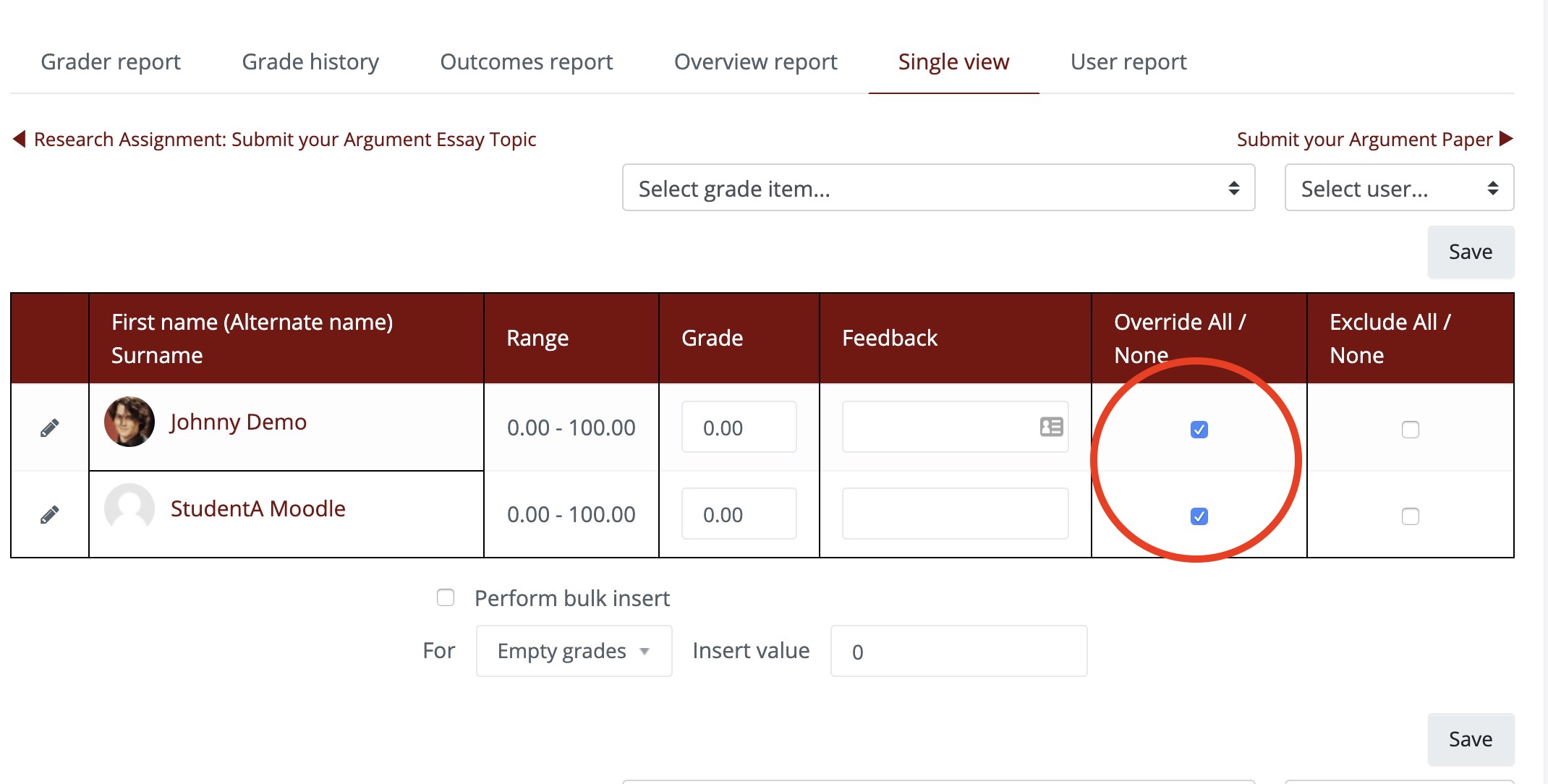
3. You will see the "Single View" report. Select the Perform bulk insert checkbox. Select Empty Grades in the dropdown and set the score in the Input value field.
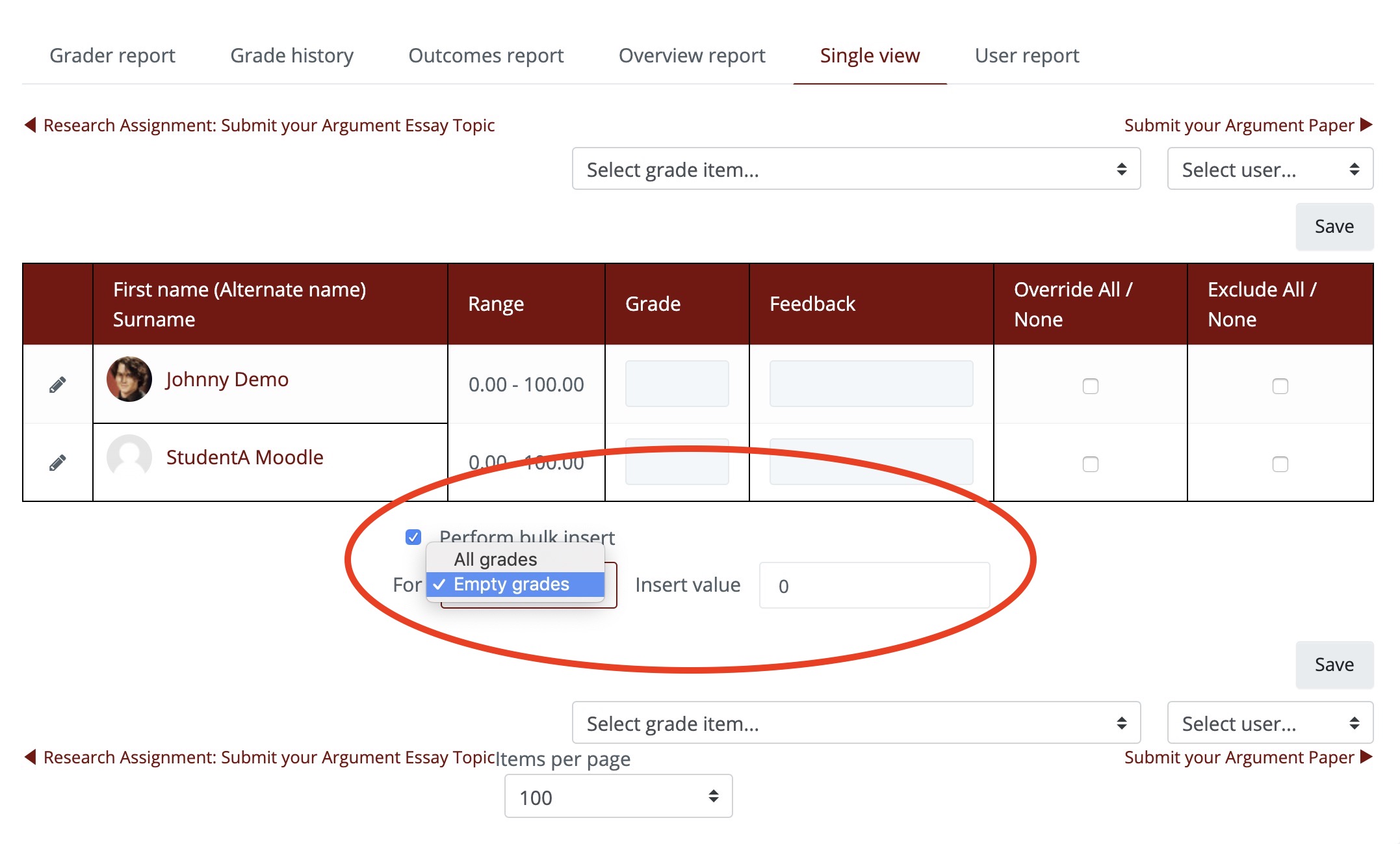
4. Click Save.
5. After saving, you'll see a checkmark in the Override column next to each grade that was input
keywords: zero, zeroes, gradebook, blank, edit, grades, add, override overwrite, grade book, insert
Comments
0 comments
Article is closed for comments.