
Instructors are encouraged to review and prune their available question banks before students make attempts.
Note: removing questions from these system-wide banks is permanent and impacts all courses using that text.
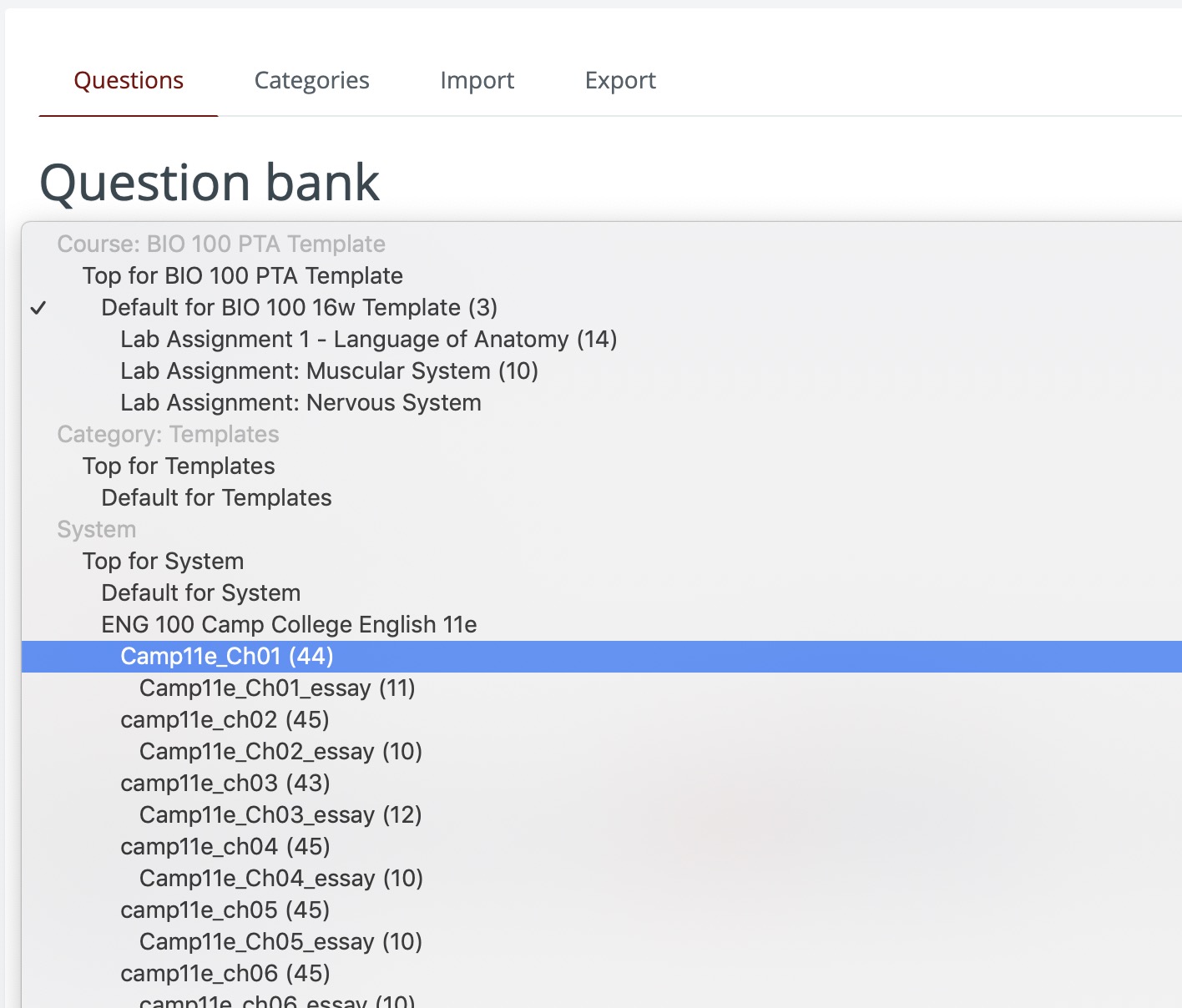
1. Navigate to the Question Bank: In the upper right of your course's main page, click the gear icon and select More. On the next screen, select Questions.
2. In the dropdown, select your text and chapter.
Removing Question Types
You can remove an entire question type, such as short-answer questions, from the bank. Each question type has a unique icon:
 Multiple Choice
 True/False
 Matching
 Short answer
 Essay (manually graded)
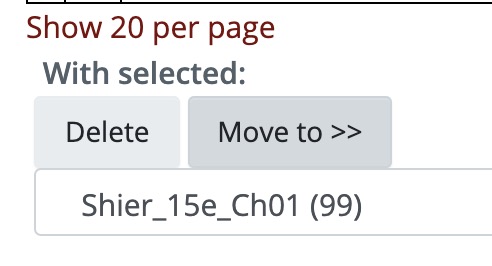
To remove all short answer questions from a chapter, select each, scroll to the bottom and click delete.
keywords: edit, delete, remove, questions, bank
Comments
0 comments
Article is closed for comments.