
Editing a Quiz After Student Attempts
If one or more students have taken the quiz, you will see a list of all the questions in the quiz and a notice saying that you cannot add or remove questions.
You can move questions in a different order, re-grade questions, preview an individual question, or directly edit the question in the bank.
Edit a Question
If you edit a question in the bank, the corrected version will appear in future quizzes.
1. Navigate to the Question Bank: In the upper right of your course's main page, click the gear icon and select More. On the next screen, select Questions.
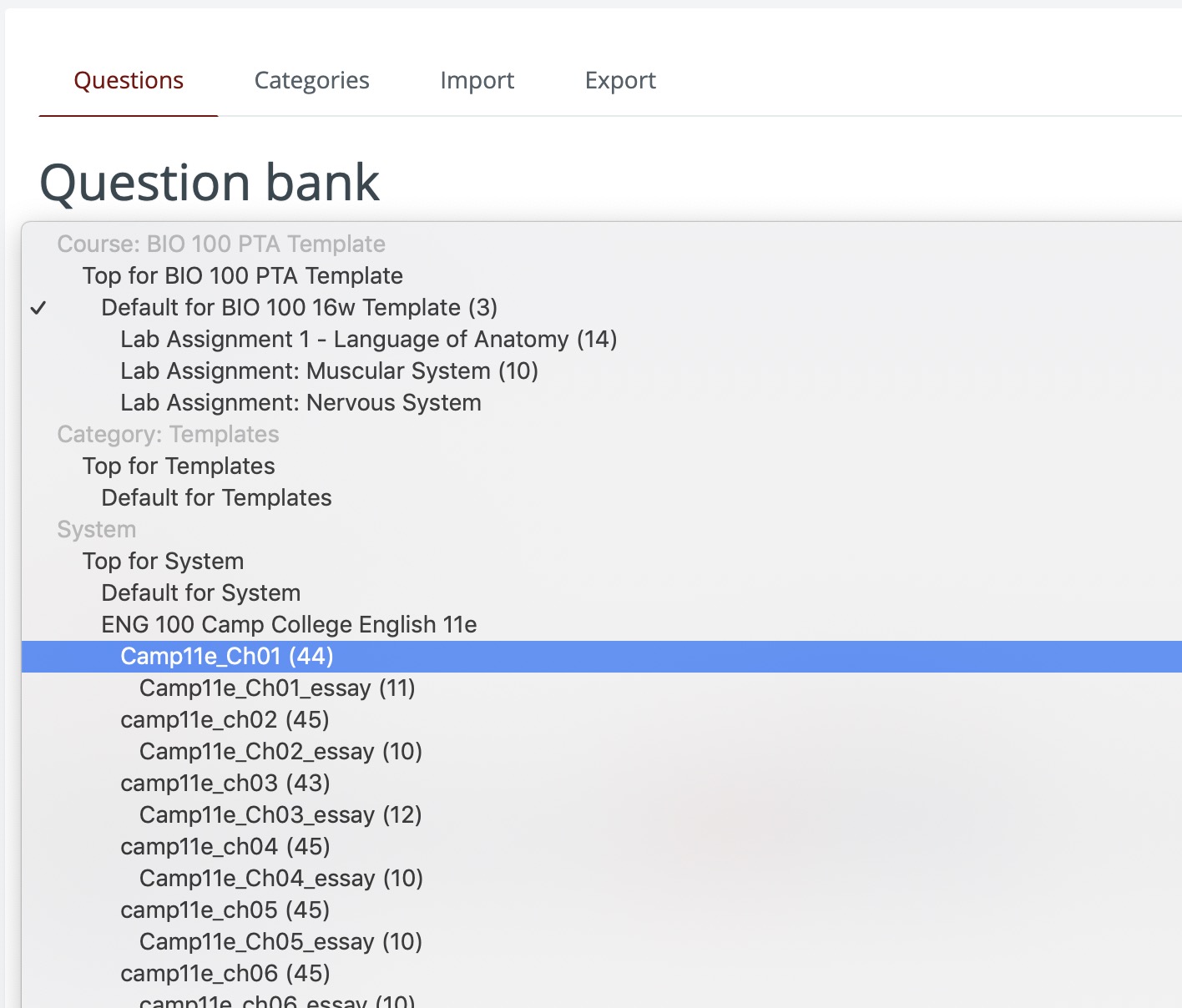
2. In the dropdown, select your text and chapter.
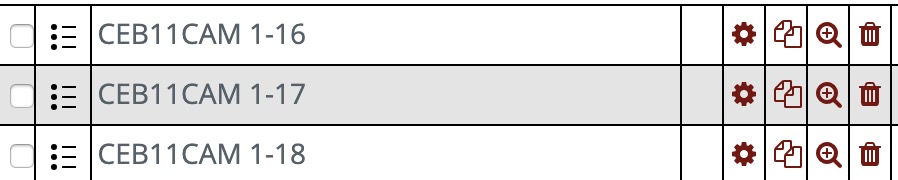
3. Click the magnifying icon to view a question, and the gear icon to edit.
4. After editing a question, scroll to the bottom and Save.
Regrading Quiz Attempts
After you edit a question bank, any existing attempts using that bank will need to be re-graded
1. Navigate to the quiz, click the gear icon and select Grades.
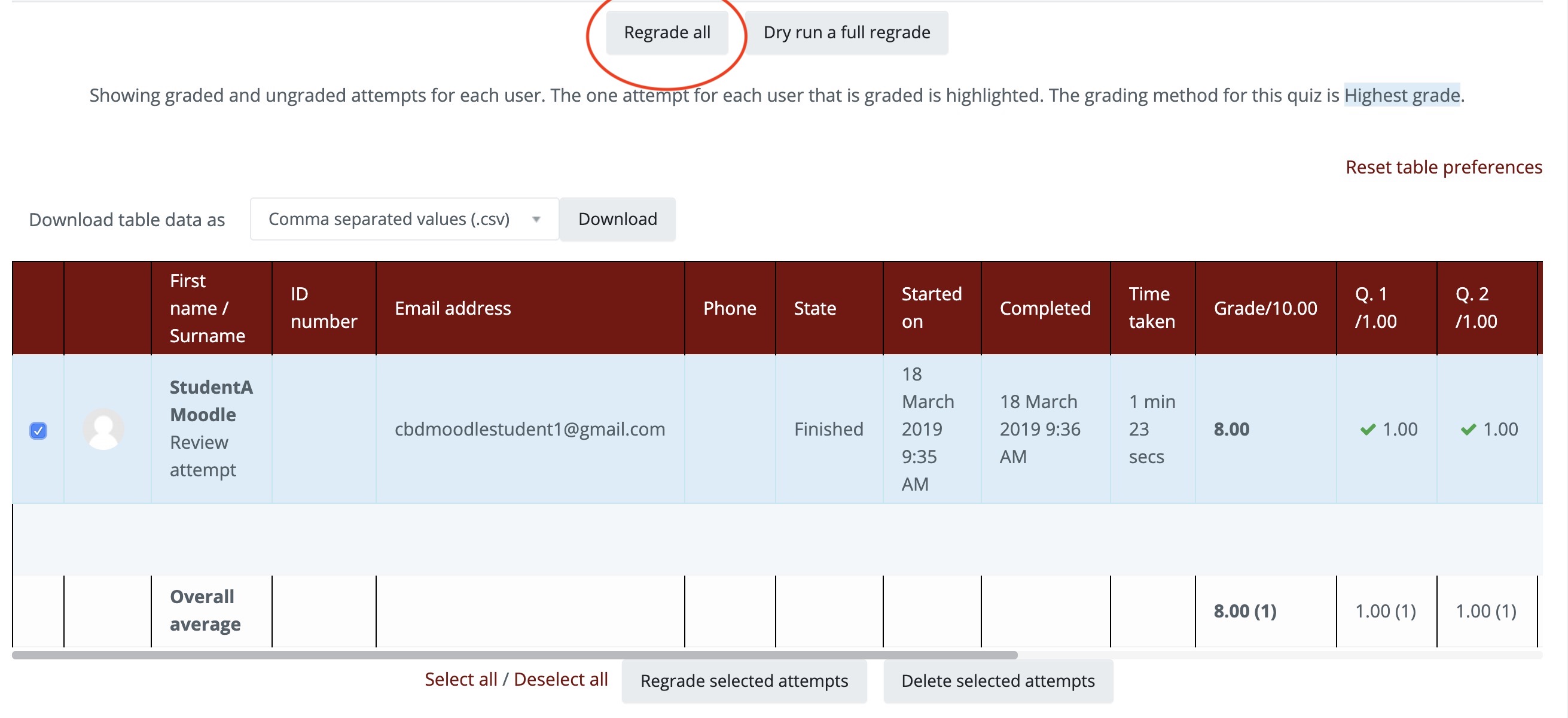
2. Click Regrade All.
Comments
0 comments
Article is closed for comments.