
1. When your document is ready, click the Share button in the upper right.

2. Click Get a copy link in the upper right of the popup.
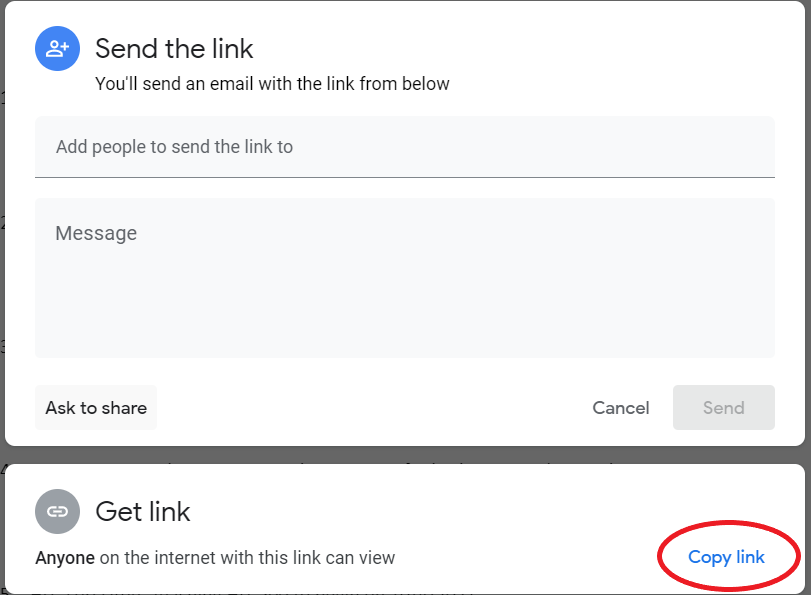
3. The link should default to 'Anyone on the internet with this link can view' and this is the acceptable viewing link for submission to your instructor. You will select 'Copy link.'
*If it does not default to this selection, or another selection is desired, underneath 'Get link,' you may change the sharing options.
Decide what you want the recipient to do with the document:
- If you do not want the recipient to comment or make changes, select Anyone with the link can view
- If you are submitting an assignment or Career Services resume, select Anyone with the link can comment so you can receive feedback.
- If you are collaborating, select Anyone with the link can edit so others can make changes to the main text.
Submitting a Google Drive Link in a Moodle Exercise/Assignment
Note: Your instructor must have enabled submission by "Online Text" in order for you to share a link.
1. Navigate to the Exercise/Assignment and click Add Submission
2. In the Online Text field, paste your copied link.
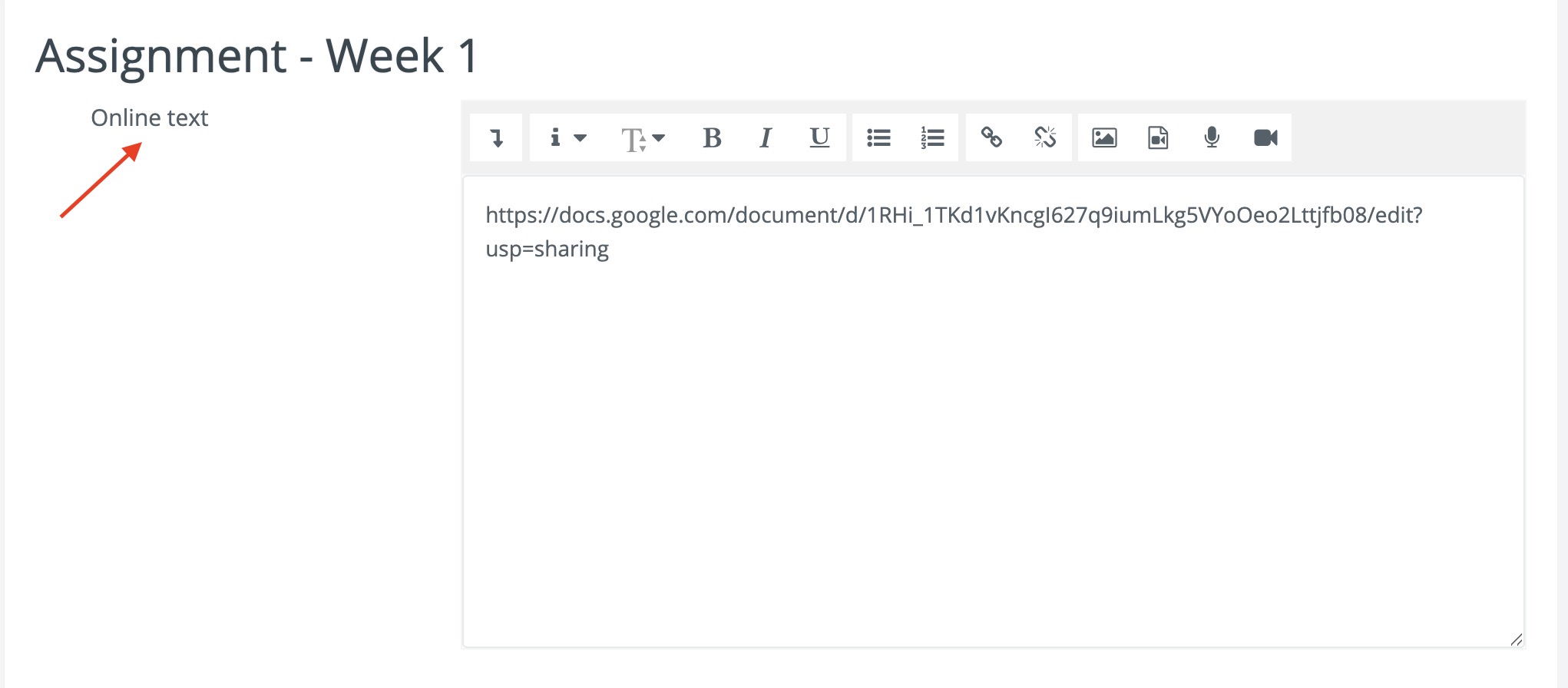
3. Click Save Changes
Comments
0 comments
Article is closed for comments.